
Introduction to Java and Eclipse
Java is free and available to download on https://www.java.com/en/
The latest version that is available to download is Java SE 13. JVM is needed for every machine to run Java. Since Java is a high-level language, you need a compiler to compile the Java program to a machine language that the computer can understand.
Eclipse is what we will be using to build our Java programs. It is an integrated development environment, that contains a base workspace and an extensible plug-in system for customizing the environment. It is not difficult to use but has many features on it. These features include all the tools across the top of the main page. Along with building projects, from packages, to classes and interfaces etc.
As it is my first year using Eclipse, I find it to be the best software for writing Java programs. Over the years I have also wrote Java on NetBeans and Textpad, but Eclipse has more of a satisfying look to it. As well as setting up projects more easily, and not as slow to load, (issues I had with one of the other pieces of software). You can download Eclipse from https://www.eclipse.org/downloads/
Object Orientated Programming
Before we get ahead of ourselves we need to understand Object Orientated Programming (OOP). OOP defines data and set of operations that acts on the data, becoming a unit known as an Object.
Objects are like nouns, they can be identified by a name. They will also behave in a given way in response to given stimuli. Objects are composed of two different operatives; Attributes and Methods.
Attributes are also known as Data, for example Name, Age, Salary etc. Methods can also be called Functions. Methods/Functions are the way you are changing the data, for example: Calculate Salary, Delete Name etc.
To define an Object – It is a model of an everyday entity and its interactions.
Defining an Attribute – The data value of an object.
Definition of a Method – A function or a procedure associated with an object.
We as people group everyday entities with similar attributes into groups known as Classes.
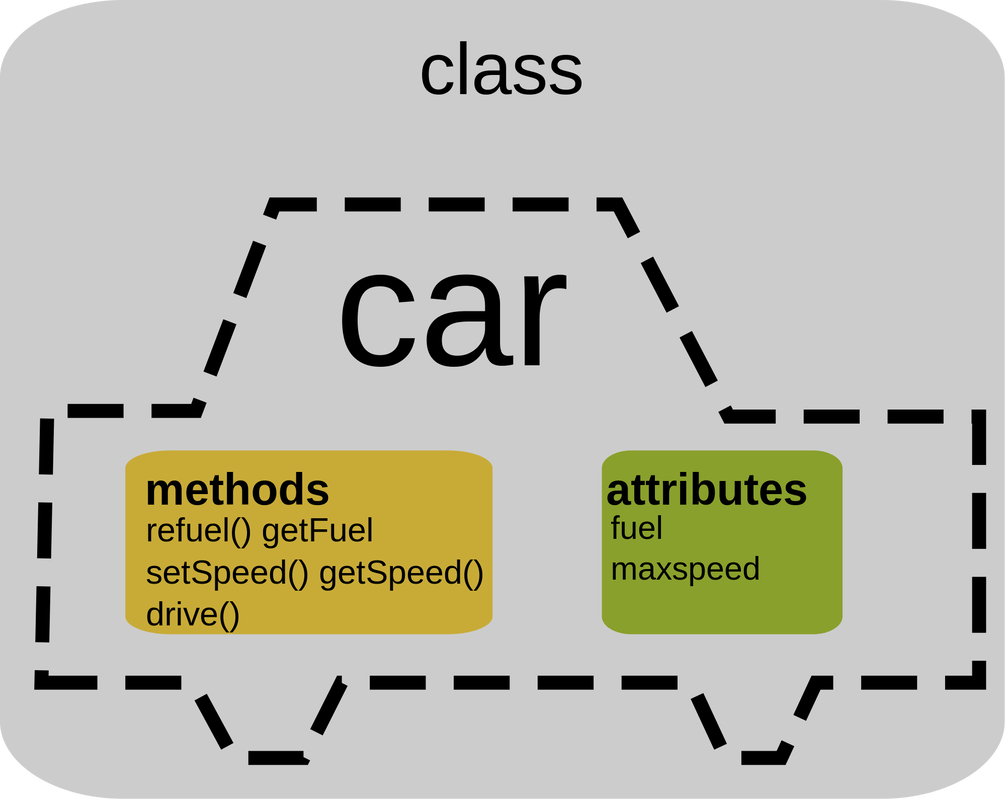
Above is a diagram of a class Car. Inside the class we can see the methods and attributes. We can see that the Methods respond to the Attributes, the fuel needing to be refuelled and max speed getting and setting speed of the class Car.
It can be difficult at times, trying to figure out what are the attribute and methods. But with time and practise, you will manage to pick them all out easily.
Creating a project in Eclipse
So now I will show you how to create a project using Eclipse. As well as some of the features that are on the software.
This will be a step by step demonstration with some screenshots included too. Open Eclipse on your desktop.
- This may take some time to load. It may ask you to save your work to a workplace, so click the one that works best for you.
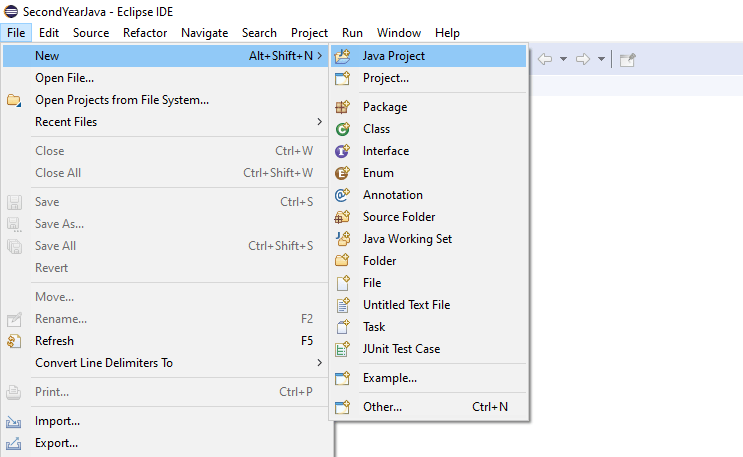
- Once Eclipse opens, click on File and go to New and then click Java Project.
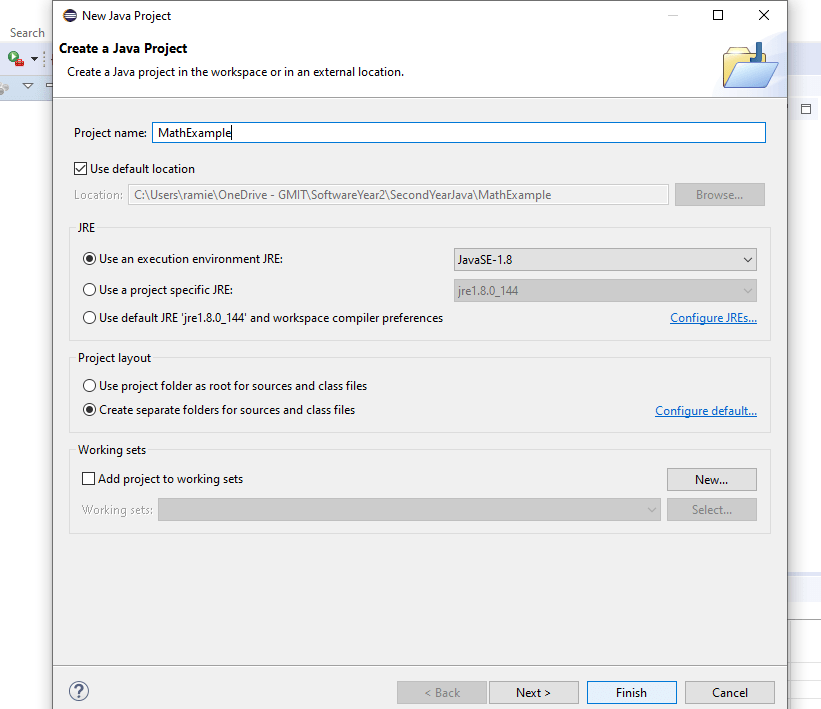
- Next you must give your Java Project a name and click finish to save it.
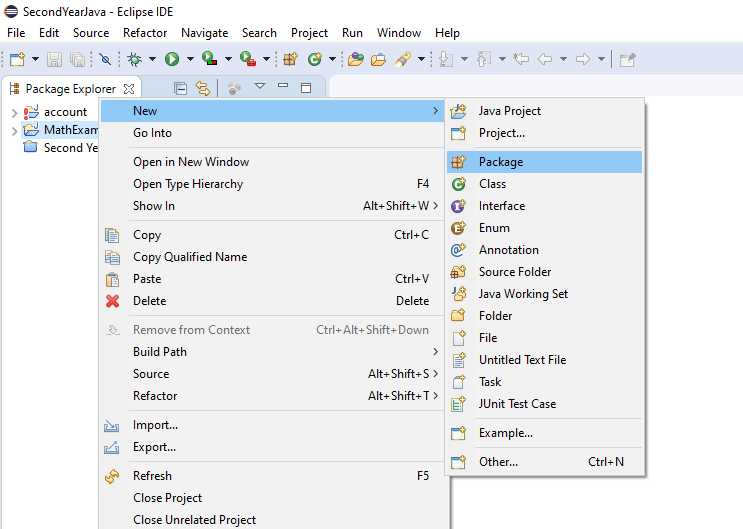
- After that is done. You will see the name of your project appear on the left-hand side of your screen. Right click on it, then go to New, and click on Package. Create a name for your Package, using Camel Casing.
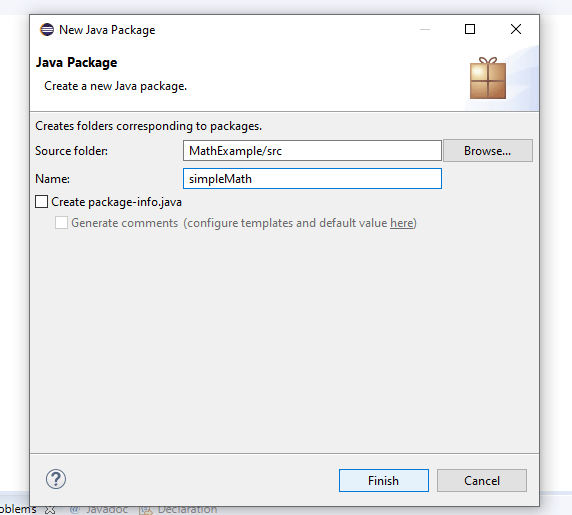
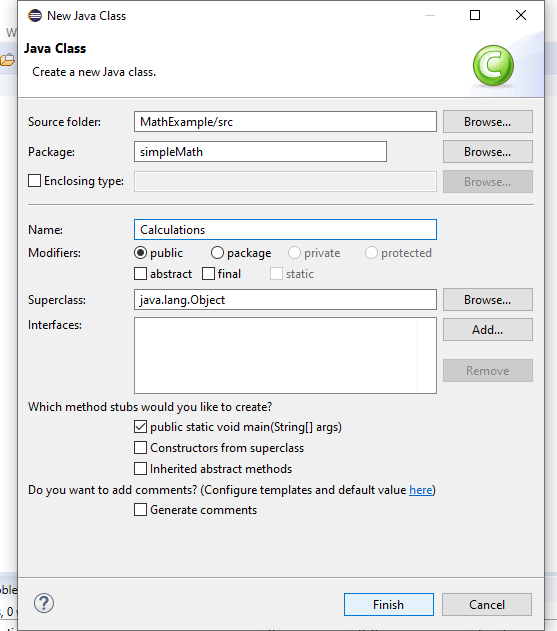
- As before, right click now on the package you just created. Go to New, then Class and create a Class. Ensure to click public static void main (String[ ] args). It’s handy having that enabled, because you could make a mistake typing it out yourself.
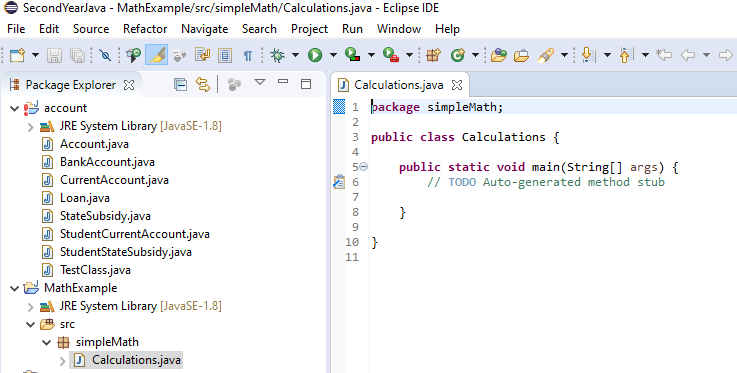
- And voila! You have created your first java project. This is what I will be working off for the screencast in my next blog.
Screencast of using Eclipse
Software used during this semester
Two pieces of software that I have been introduced to this year are MindMeister and Microsoft Teams. Neither of which I have heard of before, but I did find them quite interesting to use.
Let’s talk about MindMeister. This piece of software is a mind mapping tool. In which one can use online and share their ideas with others, like in a team or group project. It is all web based, which is handy as you can use it anywhere. MindMeister apps are available for mobiles, so you could also brainstorm on the go!
With all pieces of software, there are some pros and cons.
Let’s look at the pros first.
- Creating your mind map has no set shape or structure to follow, so you can create it in whatever format you may chose.
- Once your mind map is created, it can be converted to most files for you to print off and have a hard copy of.
- This piece of software would be perfect for the visual thinker, as there are features such as images and other attachments to the mind map.
Now the cons.
- As I said you can download on your phone and work on it there, it is harder to see and create your mind map. So it is best recommended to do it on a larger screen like a computer.
My overall impression is that it is a very good piece of software, I enjoyed using it. For its flexibility and extra features like adding attachments, images and links.
Now, I will cover a bit on Microsoft Teams. Teams is a piece of software that groups/teams use to collaborate on projects and work. Teams are grouped together in Channels, with a name chosen for themselves to identify as. One person is the admin and add the other members to the teams channel. From there, members of the team can communicate with each other, hold video meetings, share links and work on projects, for example Sway (online presentation software).
Pros:
- Everything is in one place, messaging each other, meetings, video calls etc.
- You can add third party tools in the tabs, for example MindMesiter, and share your mind map there.
- A handy feature that is on Teams, are the bots. They offer hints and tricks and can help you when you are stuck. They are always online so you can look for help at any time.
Cons:
- My number one problem was the lack of notifications from Teams. I had to actually open it up to see any messages from my team members, notifications should appear to update you on any changes.
- Very similar to other Microsoft products, similar design features and sharing files like oneDrive.
Overall impression: Teams was a very handy piece of software to use with my group. We decided that the chat would only be used to talk about the project only, otherwise things would have gotten messy. So we stayed on track and organized. The lack of notifications did set me back because at times I would not use Teams for a few days and could end up missing something. Everything was kept together on the channel and easy to use.
Follow My Blog
Get new content delivered directly to your inbox.
 How to write a Java program in Eclipse